 Secure PDF Viewer
Read
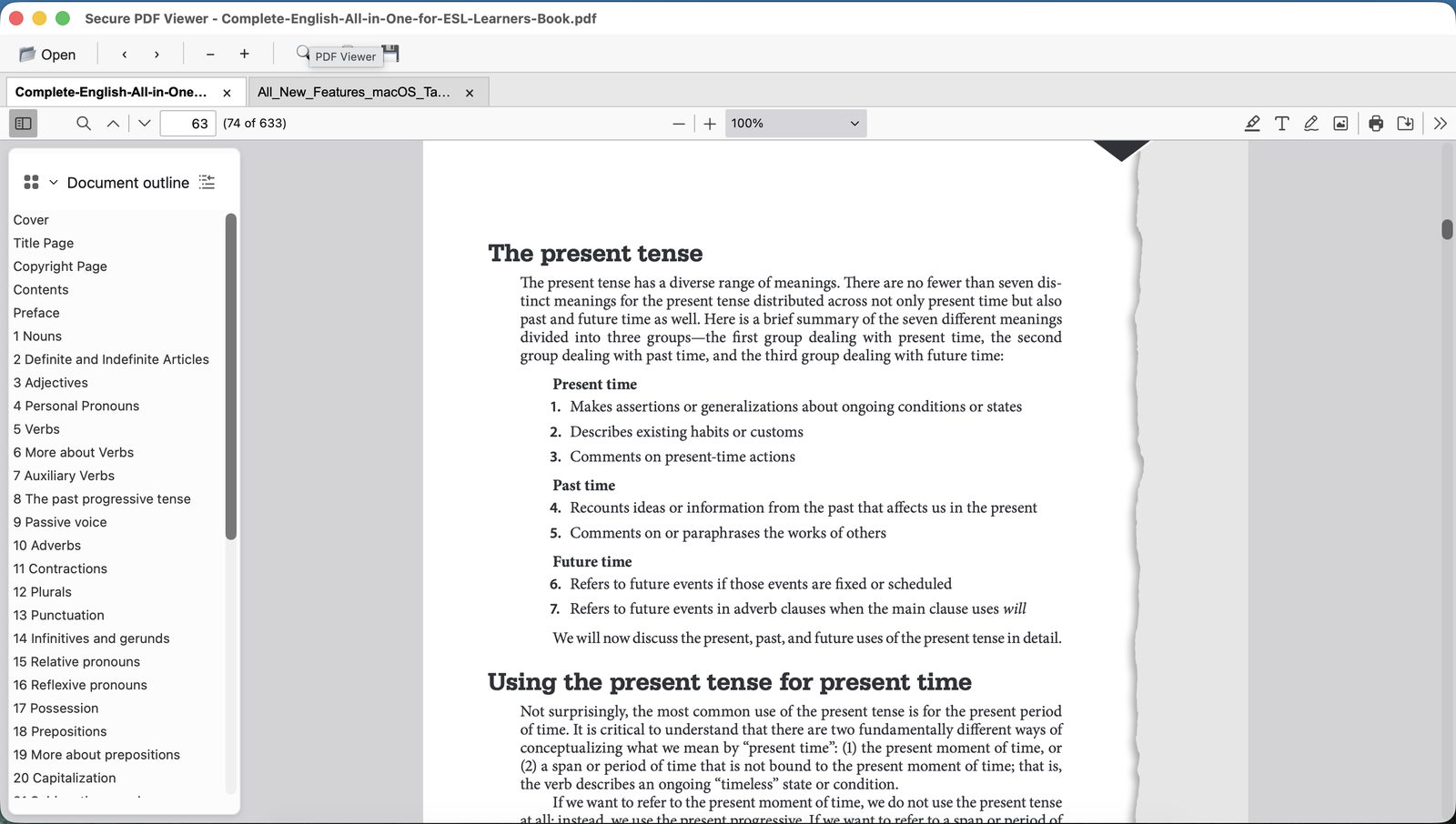
Tabs, outlines, thumbnails, zoom, and search. Drop a PDF on the window to open it.
Mac · Windows · Linux · Version 1.0
Open a document, highlight what matters, and write on the page. Save a normal PDF, or protect a copy with a password and open it again in Secure PDF Viewer.
Tabs, outlines, thumbnails, zoom, and search. Drop a PDF on the window to open it.
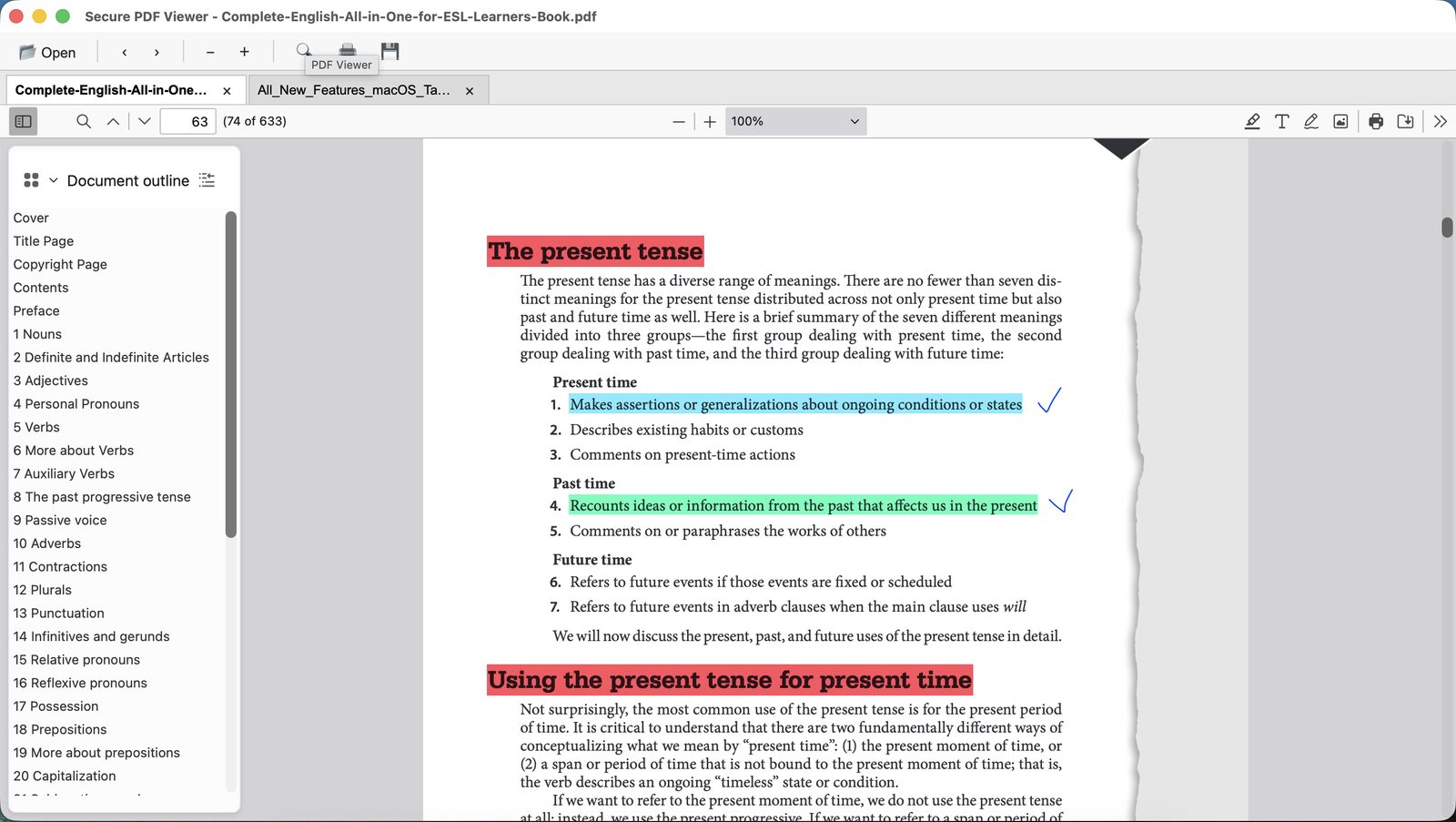
Highlights, text notes, and drawing. The marks stay in the file when you save.
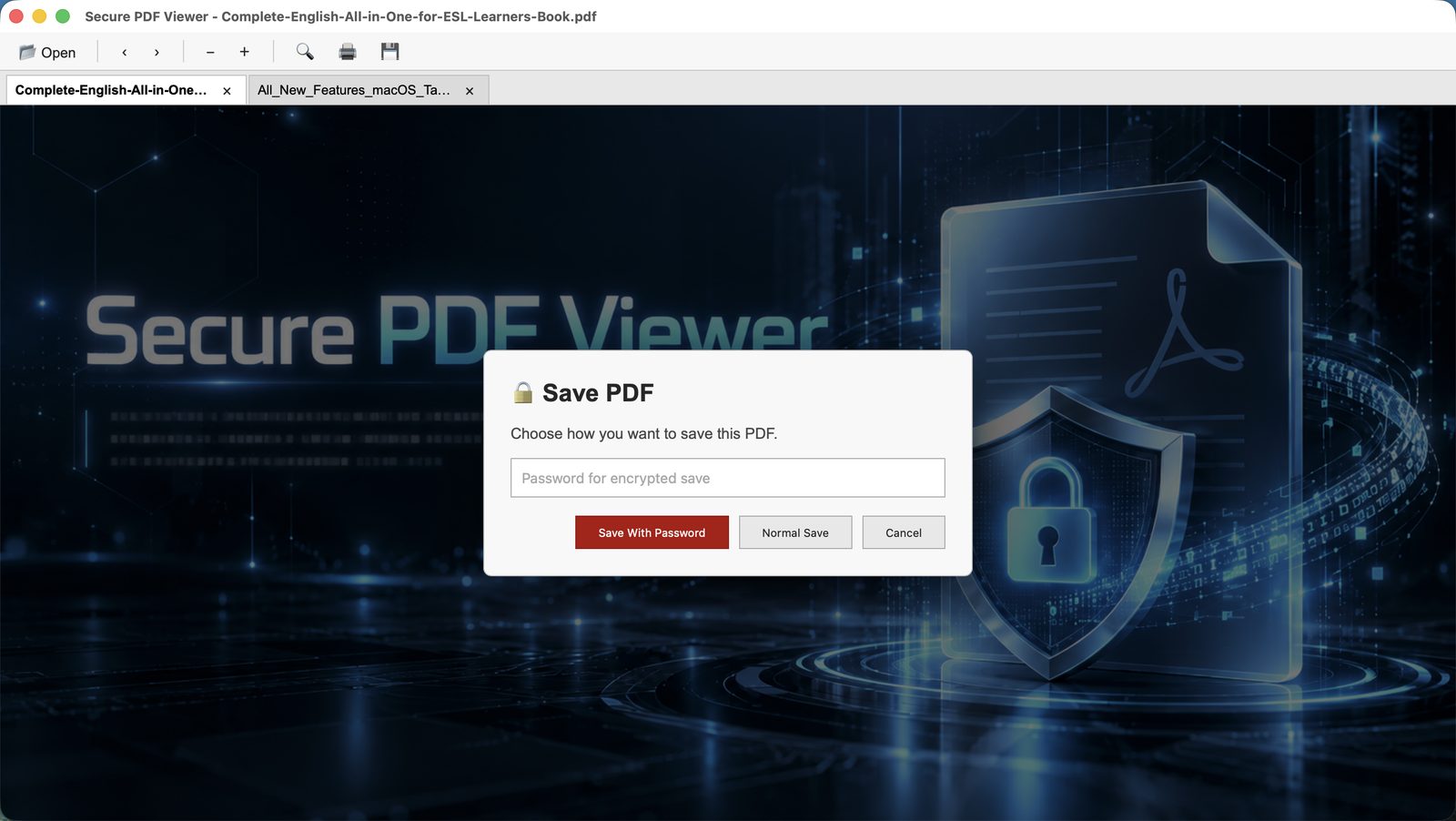
Save a standard PDF, or encrypt a copy on your computer with a password this app can open.
Version 1.0
Five builds live on this page. macOS Intel is ready. Apple Silicon, Windows, and both Linux builds will appear here as they are posted.
Package installer for Intel Macs. On Apple Silicon it can run through Rosetta until the native build is posted.
Download SecurePDFViewer-1.0-mac-x64.pkgSaving
A standard PDF. Highlights, notes, and drawings stay in the file. Preview, Acrobat, and email can open it.
Encrypted on your computer before it is written to disk. Secure PDF Viewer asks for that password the next time the file is opened. Another PDF app is not expected to show the protected document.
The password never leaves the computer. We cannot reset it. If it is lost, that protected copy cannot be opened.
01
Open a file from the toolbar, or drop it on the window. Each PDF keeps its own tab. Use the outline, the thumbnails, zoom, and search to get to the page you need.
02
Highlight a passage, write a note, or draw on the page. Save, and those marks stay in the file. This is markup on top of the page. It does not rewrite the PDF’s original wording.
03
Normal Save writes a standard PDF, annotations included, that other readers can open. Save With Password encrypts the document on your computer. Secure PDF Viewer asks for that password the next time you open the file.
A session
Drop a PDF on the window, or use Open. Each document keeps its own tab, so a long report and a one-page form can stay open together.
Use the outline, thumbnails, search, and zoom. Rotate a page, change the scroll, or switch between single pages and spreads.
Highlight a passage, leave a text note, or draw on the page. The marks sit on top of the document. They do not rewrite the original wording.
Normal Save is a standard PDF for anyone. Save With Password is the copy you intend to open again in Secure PDF Viewer.
How it is built
There is no sign-in and no cloud library. The app starts, you open a file, and the work stays on that computer.
Reading, markup, and encryption happen on the machine. The PDF is not sent to us so we can process it.
Save With Password uses the password you type on that computer. We never receive it, and there is no reset.
Highlights, notes, and drawings are annotations. Secure PDF Viewer does not edit the existing body text of the PDF.
Thumbnails, notes, the password prompt, and the page tools.
App previews
Reading, markup, and password protection. Press play on any of them.
Open a document, move between pages, and use the outline.
Highlight, write, and mark up a page.
Save with a password, then open the file again.
Write with your system, the Secure PDF Viewer version, and what you expected to happen. Please don’t send the PDF or the password.